
Why is my website not showing up on Google? What to check
By Mohamed Hadri
If your website isn’t showing up on Google, it’s usually one of four things: it ranks low, it’s too new to have been found, something on the site blocks Google, or Google found it and hasn’t indexed it. Start with the first: many people assume they aren’t on Google, Google says, when their page simply ranks low. If your site vanished, skip to the section on sudden drops.
The checks, in order:
- Turn off SafeSearch and search
site:yourdomain.com. Any result means you’re in Google’s index. - New site? Allow at least a week after submitting a sitemap or requesting indexing.
- Look for blocks you may have set yourself: robots.txt, noindex, a password or maintenance page, a firewall. Our free scan checks your robots.txt and home page for the first two and, without an account, warns you if it finds one.
Is your website really not showing up on Google, or just ranking low?
The site: search above settles it in a minute; for a single page, Google suggests site:yourdomain.com/page. If your shop shows up for its name but not for “perfume shop in Riyadh”, it’s indexed, and ranking is a different problem.
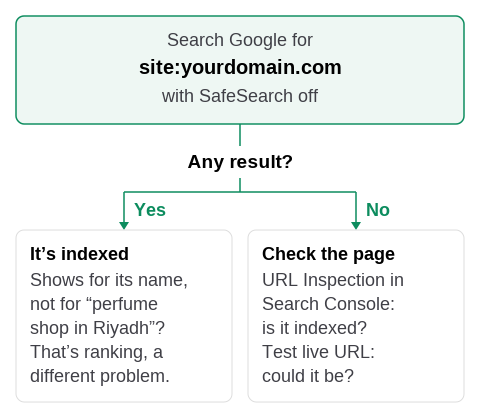
Then set up Google Search Console, Google’s free tool for site owners, and add your site as a property: a Domain property needs a DNS record, while a URL-prefix property accepts other ways to prove you own it. Blogger and Google Sites sites are verified automatically if you sign in with the account that manages them. Type your full home page address, with https://, into the search bar at the top of Search Console. The URL Inspection tool opens and shows whether the page is indexed; its Test live URL button shows whether it could be.
How long does a new website take to show up on Google?
Usually days to weeks. Google says indexing a new page takes “anywhere from a day or two to a few weeks, typically”. It promises nothing firmer, so treat anyone else’s date as a guess.
To help Google find a new site or store, submit a sitemap. Shopify makes one for every store at yourdomain.com/sitemap.xml; on other platforms, search the help centre for “sitemap”, as Google suggests. Paste its address into the “Add a new sitemap” box in Search Console’s Sitemaps report. Then request indexing for your home page in URL Inspection; if your pages link to each other, Google can follow them from there. Links from other sites help too, since Google discovers new sites from existing sites.
None of these forces indexing. A crawl request doesn’t guarantee inclusion “instantly or even at all”, Google says, and repeating it won’t speed things up.
Did something on your site block Google?
Possibly, and you can usually undo it yourself. Google’s most common reasons a page isn’t indexed are a robots.txt file, a noindex directive, or something like password protection.
- Open
yourdomain.com/robots.txtand look for these two lines:
Together they shut out every crawler the file doesn’t name in a group of its own, Googlebot included. Zid’s help centre warns thatUser-agent: * Disallow: /Disallow: /takes the whole store out of search results. Blocking AI training bots is separate: Google-Extended doesn’t affect Google Search (see which AI bots to block). - A
noindexin a robots meta tag or anX-Robots-Tagheader makes Google drop the page from Search. Check after any redesign or move from a test site: search View Source for “noindex”. In WordPress, the “Discourage search engines from indexing this site” box under Settings > Reading adds one. The Page indexing report lists such pages as “URL marked ‘noindex’”. - A new Shopify store starts in private mode, which hides every page from visitors and search engines. To open it, go to Online Store in your admin, click Private, select Public and click Launch store. Salla’s maintenance mode tells visitors the store is temporarily unavailable, so switch it off at launch.
- If a firewall answers Googlebot with a 403, the Page indexing report shows “Blocked due to access forbidden (403)”, and Google says the page won’t be indexed. URL Inspection’s live test shows what Google gets.
Our free scan runs the first two checks on your home page and robots.txt and, without an account, warns beside your score if robots.txt shuts out every crawler it doesn’t name or the page says noindex. It also compares what a request named Googlebot gets with what a browser gets; the real Googlebot may fare differently. Its result, which check is which, and general fixes open free once you add the site to your account. The scan can’t see Search Console or other pages, its score covers more than indexing, and results are kept for 24 hours, so a re-scan right after a fix may show the old result.
Why isn’t Google indexing my pages?
If Search Console says “Discovered” or “Crawled - currently not indexed”, Google knows the page but hasn’t indexed it. Google’s help defines both, with no time limit for either:
- Discovered - currently not indexed: found but not crawled yet, usually because Google expected the crawl to overload your site and rescheduled it.
- Crawled - currently not indexed: crawled but not indexed. It “may or may not be indexed in the future”, and you don’t need to resubmit it.
Don’t expect every page to be indexed, Google says, only your key pages. Low-quality content is one of the common indexing issues it lists. And when several URLs show the same page, such as a product at two addresses, Google picks one as canonical and shows only that one. URL Inspection tells you whether a page counts as a duplicate.
Your site vanished from Google or traffic dropped to zero: what to check, in order
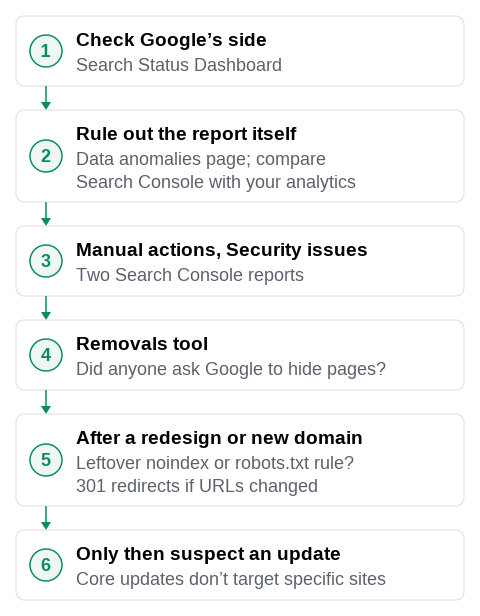
- Check Google’s side first. The Search Status Dashboard lists incidents and ranking updates. On 30 October 2026 it showed no recent crawling or indexing incidents; the latest ranking update, the September 2026 spam update, ran for 13 days and 16 hours from 24 September.
- Then rule out the report itself. A Search Console drop can come from a data processing change or a logging error, which Google lists on its data anomalies page. Compare Search Console with Google visits in your analytics (this post shows where). On 30 October 2026, neither Google page listed an October issue.
- Check Search Console’s Manual actions and Security issues reports. A manual action keeps some or all of a site out of results, and security issues can add a warning. Bought the site? Check both reports’ history.
- The Removals tool shows whether anyone asked Google to hide your pages.
- After a redesign, platform switch or new domain, look for a leftover noindex or robots.txt rule. If URLs changed, Google recommends permanent redirects such as 301 from each old address.
- Only then suspect an update. Google says core updates don’t target specific sites or pages, and that after one there might not be anything wrong with your content. Don’t read an update as a penalty: manual actions have their own report.
If you’re not on Google, can you still appear in its AI answers or in ChatGPT?
Not in Google’s. To be a supporting link in AI Overviews or AI Mode, a page must be indexed and eligible to show in Search with a snippet, Google says, and there are no additional requirements.
ChatGPT search is separate. OpenAI uses its own crawler, OAI-SearchBot, to surface sites there, so check that bot can reach you too (our ChatGPT post shows how). An llms.txt file won’t get you into Google either: Google Search doesn’t use such files.
Quick answers
- Can I pay Google, an agency or an app to get indexed faster? Google doesn’t accept payment to crawl a site more often or rank it higher, and no one can guarantee a #1 ranking.
- Google shows my domain instead of my site name. Google generates site names automatically and may show the domain when it isn’t confident. Add WebSite structured data with your name to your home page, and allow days to weeks for a recrawl.
- My business isn’t on Google Maps. That’s a Business Profile, a separate listing you add and verify at no charge.
- Do I need a robots.txt or a sitemap? Not a robots.txt: if it’s missing, Google assumes there are no crawl restrictions. A sitemap is optional for a small, well-linked site (about 500 pages or fewer), but helps a new site with few links to it.
Sources
- Search Console Help: Why is my page missing from Google Search?
- Search Console Help: About Search Console
- Search Console Help: Add a website or platform property to Search Console
- Search Console Help: URL Inspection tool
- Search Console Help: Page indexing report
- Google Search Central: Ask Google to recrawl your URLs · updated 10 December 2025
- Google Search Central: Learn about sitemaps · updated 10 December 2025
- Shopify Help Center: Finding and submitting your sitemap
- Search Console Help: Sitemaps report
- زد، مركز المساعدة: تخصيص ملف Robots.txt (لوحة التحكم الجديدة) · updated 25 August 2026
- Google: Google’s common crawlers · updated 30 October 2026
- Google Search Central: Block Search indexing with noindex · updated 10 December 2025
- WordPress.org Documentation: Settings Reading screen · updated 8 June 2024
- Shopify Help Center: Restrict access to your online store
- سلة، مركز المساعدة: تفعيل وضع الصيانة في متجرك · updated 31 August 2026
- Google Search Central: In-depth guide to how Google Search works · updated 18 December 2025
- Google Search Status Dashboard · read 30 October 2026
- Google Search Central: Debugging drops in Google Search traffic · updated 10 December 2025
- Search Console Help: Data anomalies in Search Console · read 30 October 2026
- Search Console Help: Manual actions report
- Search Console Help: Security issues report
- Search Console Help: Removals and SafeSearch reports tool
- Google Search Central: How to move a site · updated 20 August 2026
- Google Search Central: Google Search’s core updates and your website · updated 10 December 2025
- Google Search Central: AI features and your website · updated 10 December 2025
- Google Search Central: Google’s Guide to Optimizing for Generative AI Features on Google Search · updated 10 July 2026
- OpenAI: Overview of OpenAI Crawlers
- Google Search Central: Do you need an SEO? · updated 5 June 2026
- Google Search Central: Provide a site name to Google Search · updated 10 December 2025
- Google Business Profile Help: Add or claim your Business Profile
- Google: How Google interprets the robots.txt specification · updated 23 October 2026